## setup
Setup tutorial
Connect Obsidian to EiraSync — in a few steps.
Copy your setup link from the dashboard, install the LiveSync plugin, paste the link — done. Follow each section in order.
1. Get your setup link
In the EiraSync dashboard
Sign in, open your vault, and click “Generate new setup link”.
Copy the setup link and URI passphrase — you will need both in Obsidian.
Tip: Save them now. “Regenerate” disconnects all devices.
2. Install the LiveSync plugin
Install & enable in Obsidian
Settings → Community plugins → Browse → search “LiveSync”.
Install “Self-hosted LiveSync” by vrtmrz and click “Enable”. Same steps on your phone.
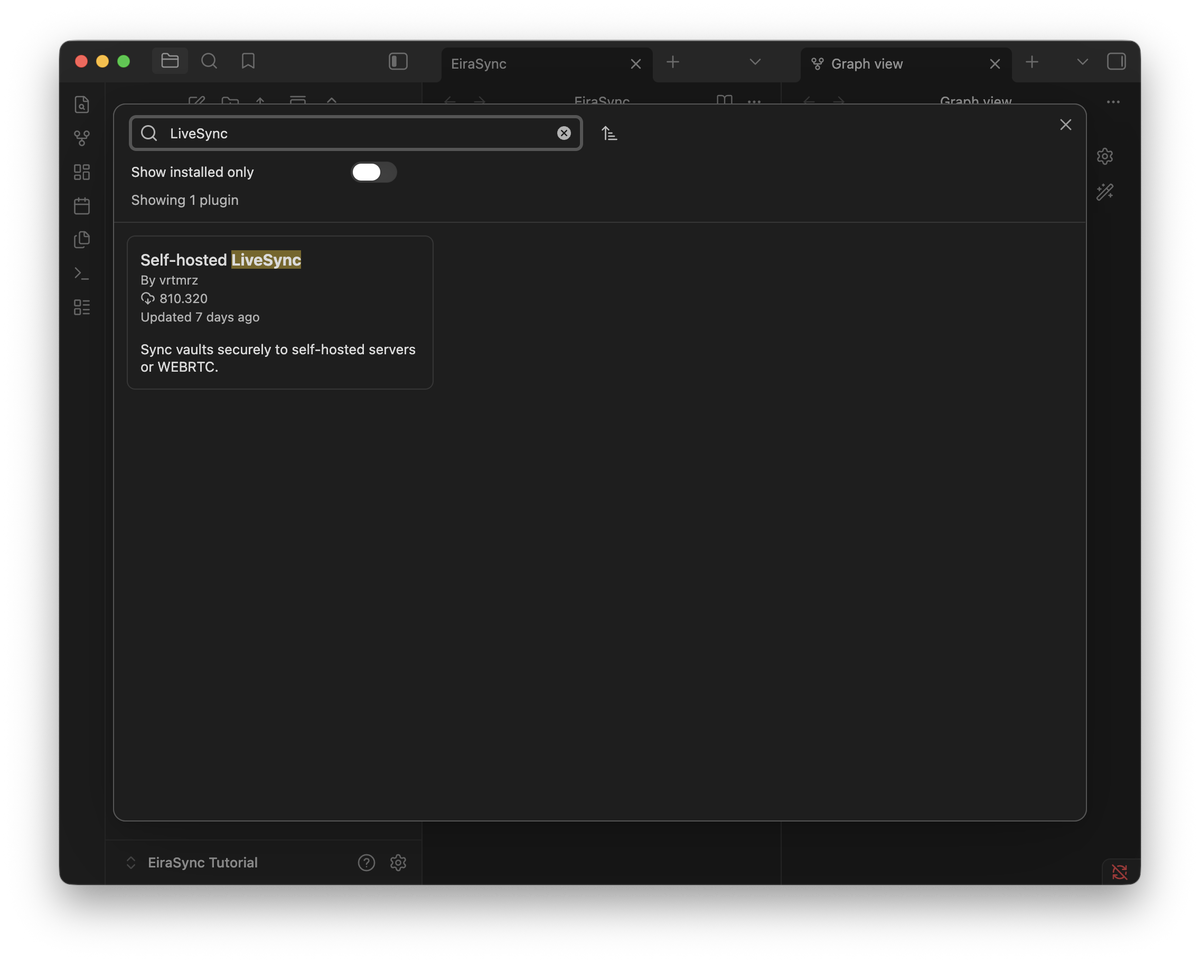
Desktop — author: vrtmrz
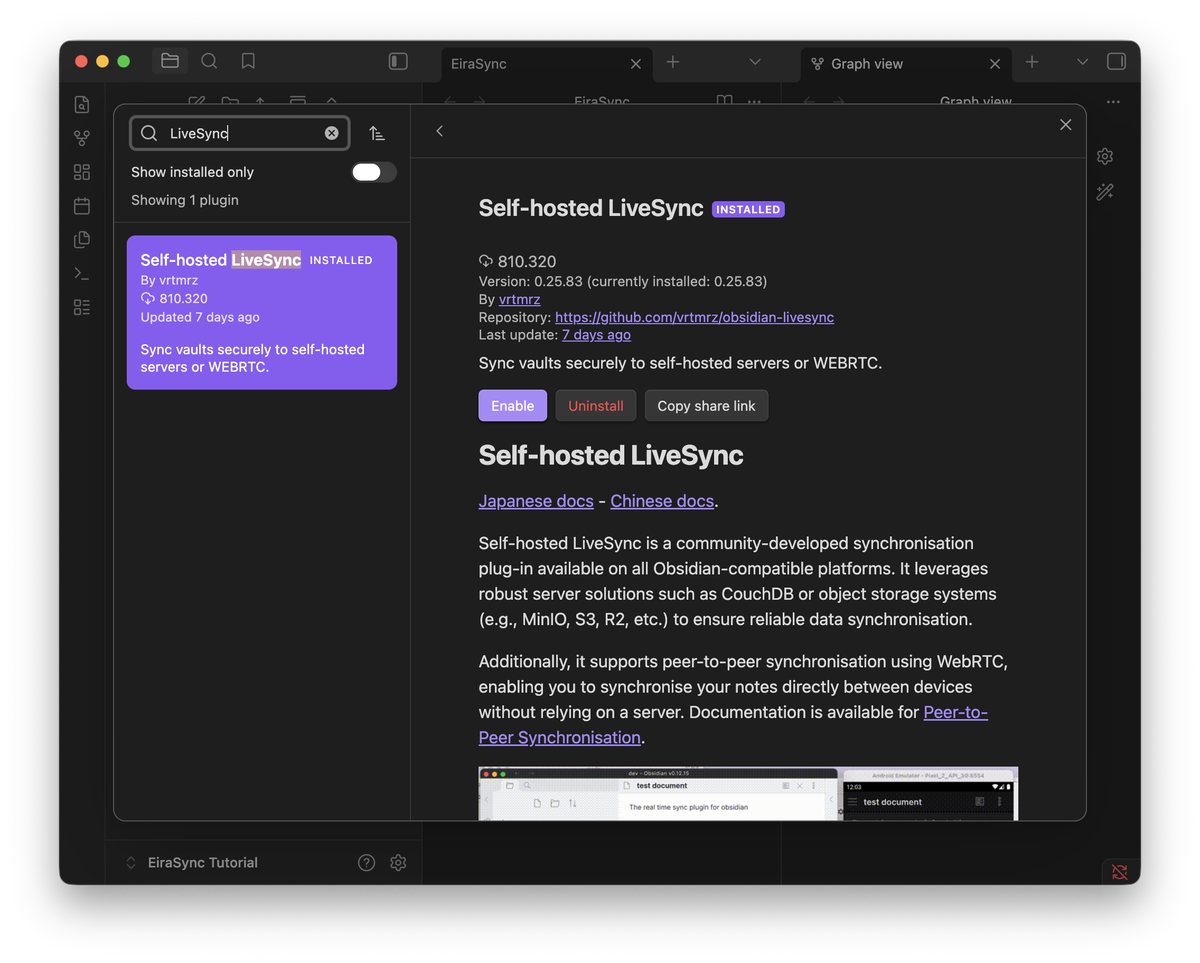
Desktop — click “Enable”
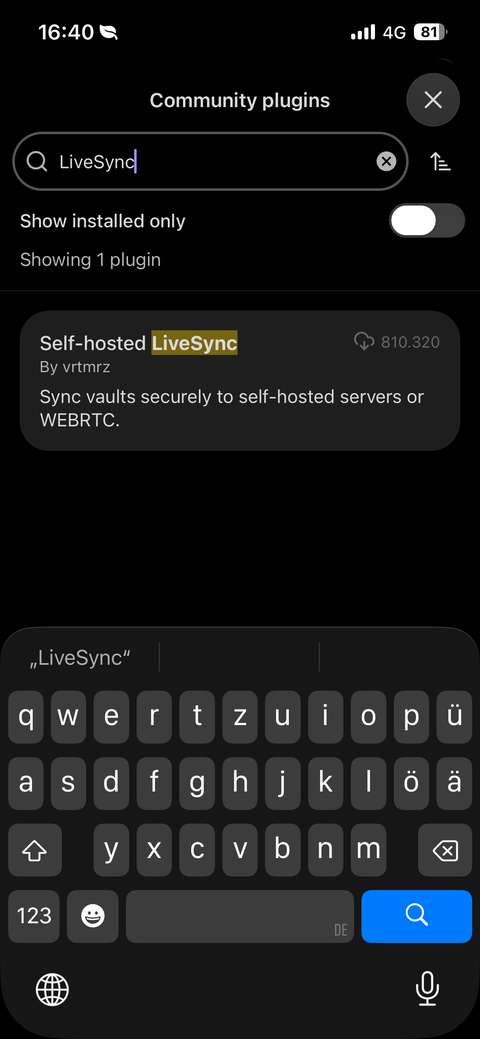
Phone — same flow
3. Set up your first device
Follow the wizard
Choose “I am setting this up for the first time”.
Keep “Use a Setup URI” as the connection method and continue.
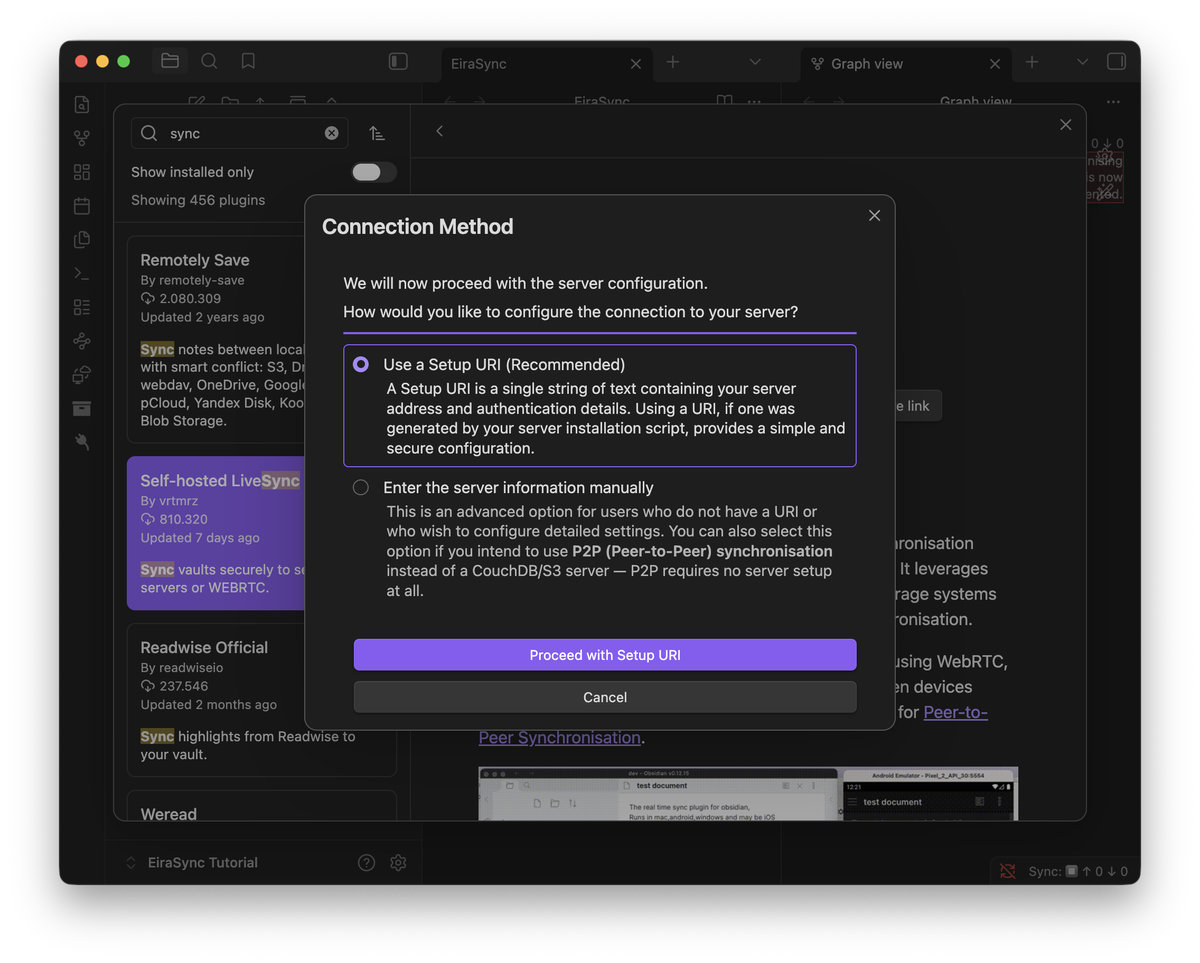
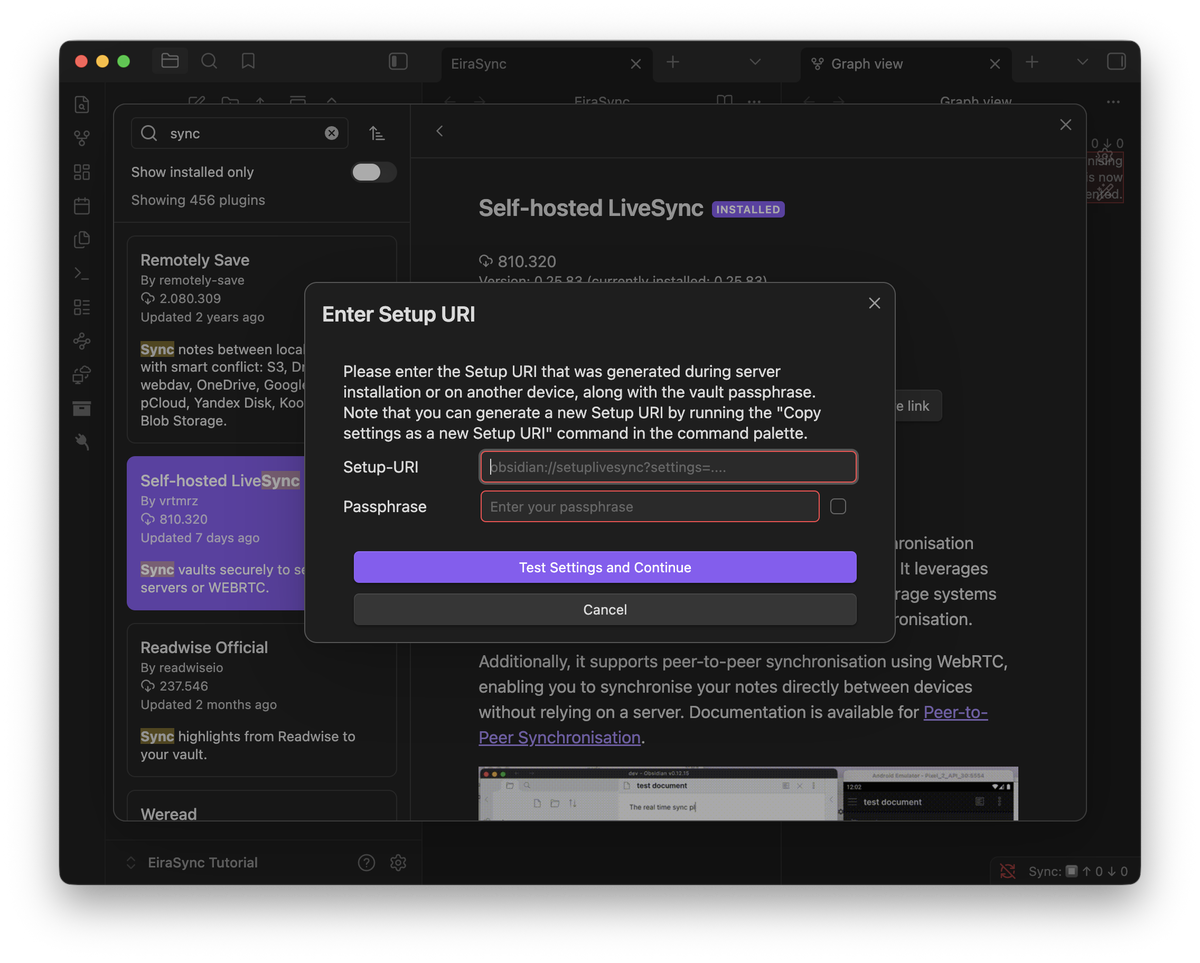
Paste link and passphrase
Paste setup link and URI passphrase from EiraSync → “Test Settings and Continue”.
When asked about uploading: “Yes” — your notes go to the cloud.
4. Add another device
Same setup link as device 1 — do not generate a new one in the dashboard.
Second computer
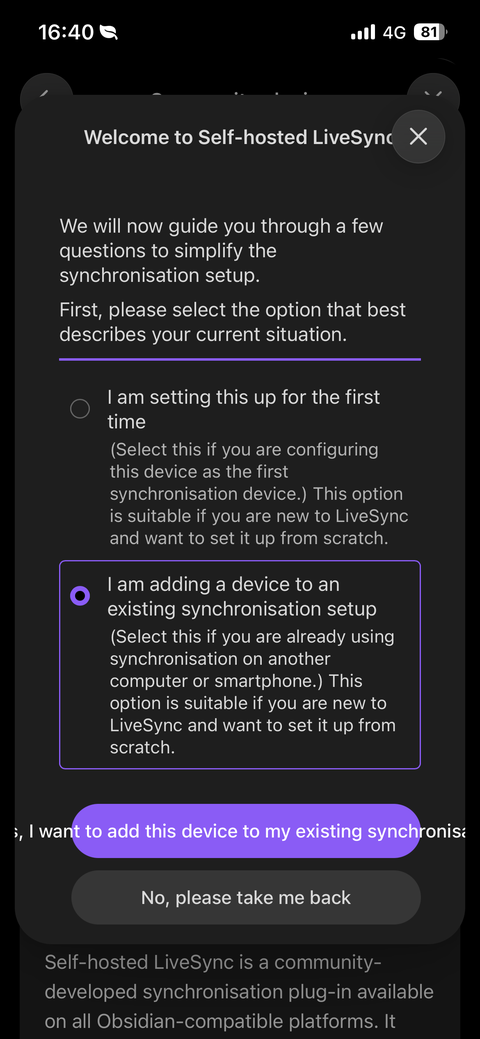
Install LiveSync, choose “adding a device to an existing setup” in the wizard.
Paste the same setup link and passphrase. When asked about uploading: “No”.
Phone via QR code
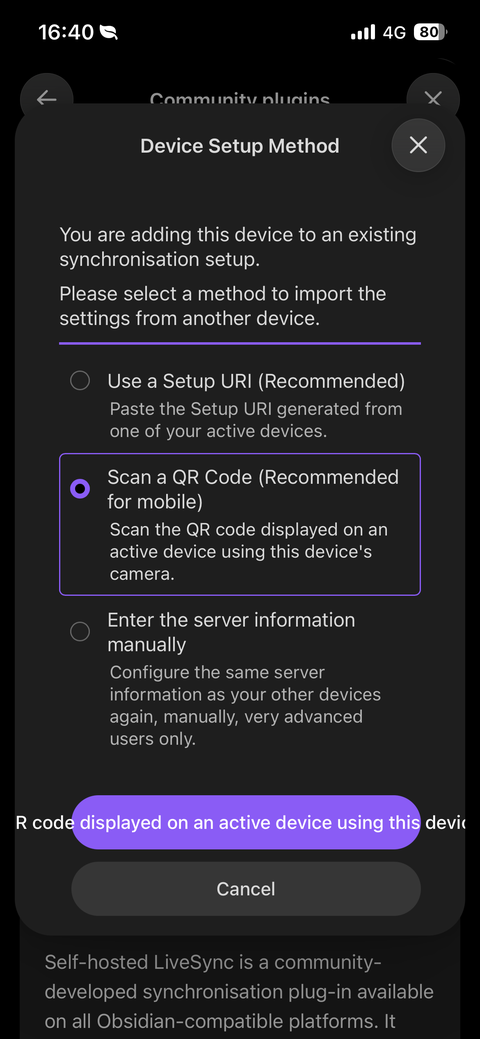
Install LiveSync, choose “adding a device to an existing setup”, then “Scan a QR Code”.
On your first device: Settings → Self-hosted LiveSync → “Setup” tab → “Show QR code” → “For your eyes only”.
Scan the QR code with your phone, enter the passphrase.
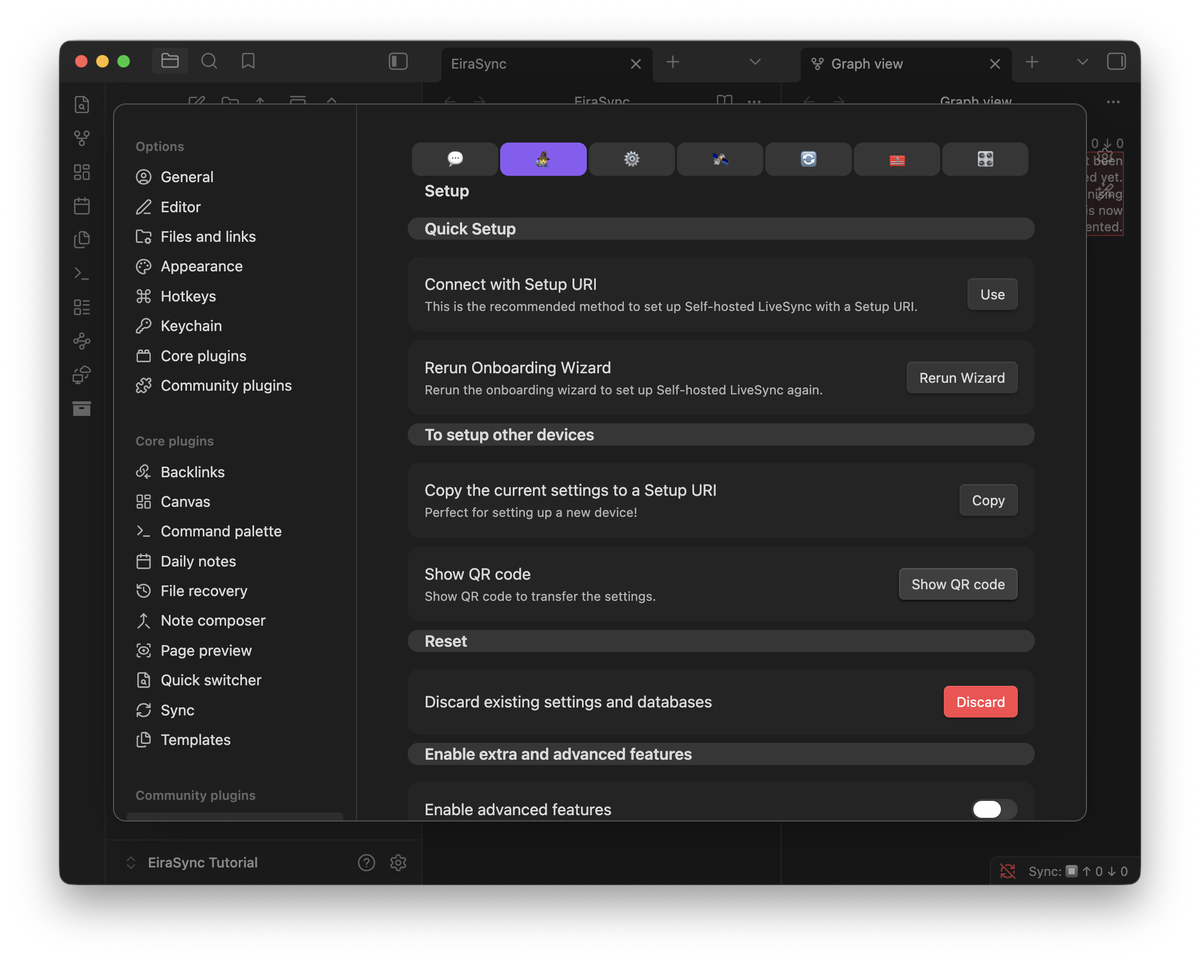
“Setup” tab → “Show QR code”
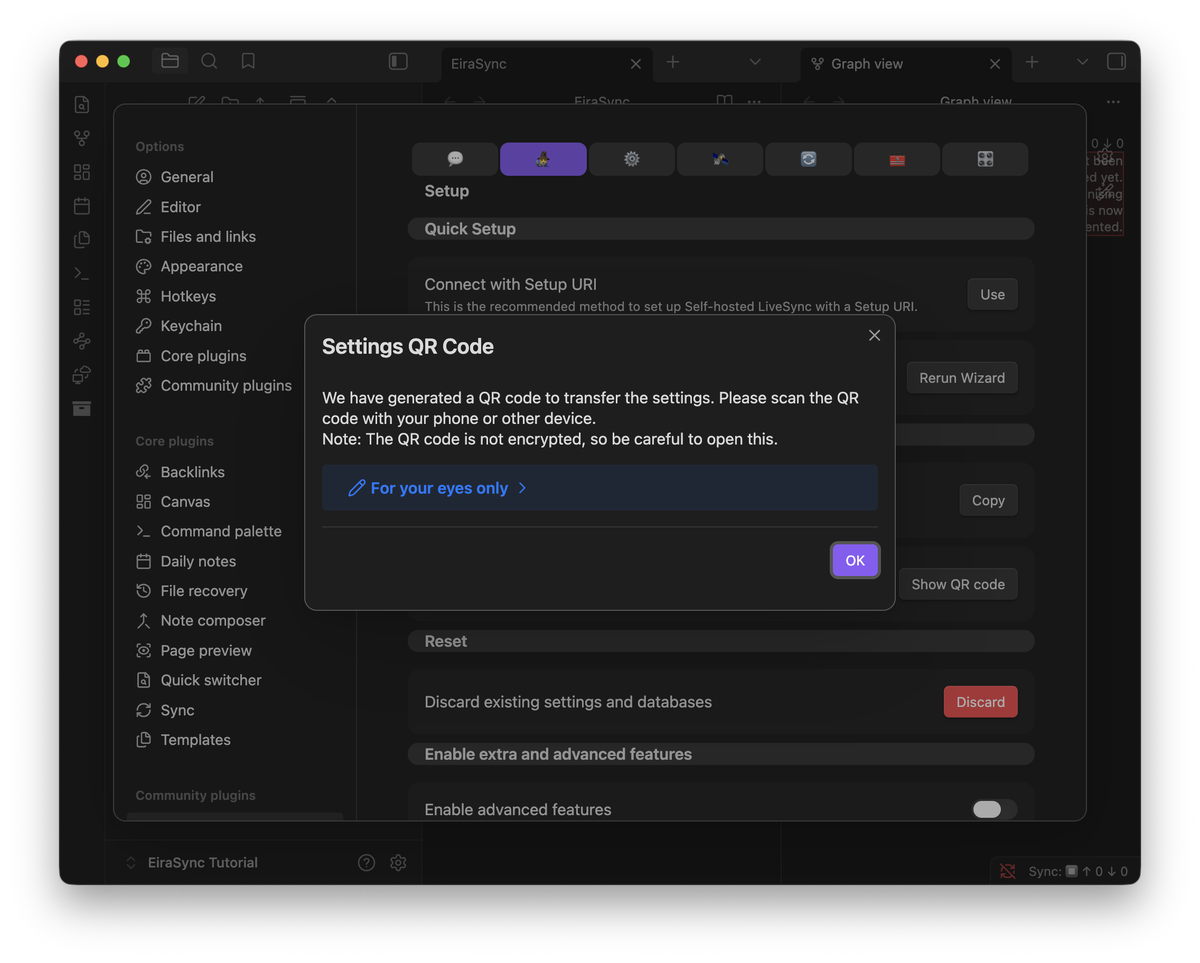
Tap “For your eyes only”
Nice work — you did it!
Your notes now sync across your devices. Check the dashboard anytime to see your vault status.
Go to dashboardGood to know
Zero-knowledge architecture
Your notes are encrypted on your device before they reach the server. EiraSync only stores encrypted data — we cannot read your notes, even if we wanted to. Only you hold the key.
One link for all devices
Desktop and phone share the same setup link.
“Not a server admin”
You can ignore this — normal for your private vault.